MFA VIB mail
Setting up Multi Factor Authentication (MFA)
Extra info
1
Connect to VIB network
Text
Connect to a secured VIB-network, wired in HQ or using the VIB-Guest WiFi.
If these are not available, contact ICT Headquarters (ict.servicedesk@vib.be) with the request to get an Temporary Access Pass.
Extra info
2
Go to the personal security settings
Extra info
3
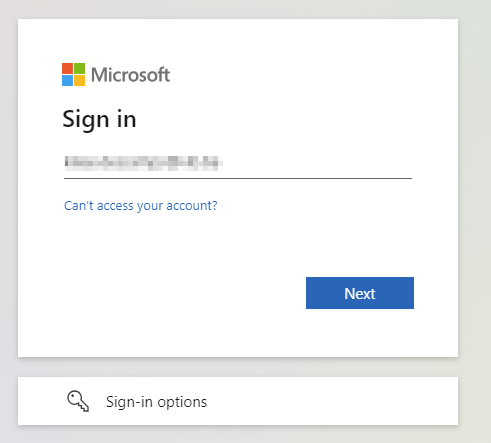
Sign in with your @vib.be email address
Text
Extra info
4
Enter your new password and click “Sign in”
Text
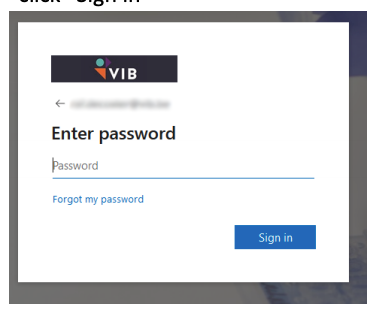
If you are using the Temporary Access Pass, you will see the following screen instead of the password request screen.
Enter the passcode you received from ICT ServiceDesk.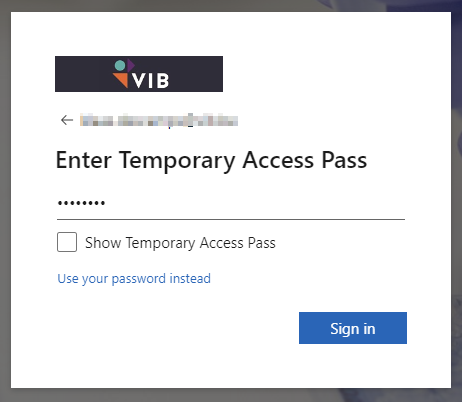
Extra info
5
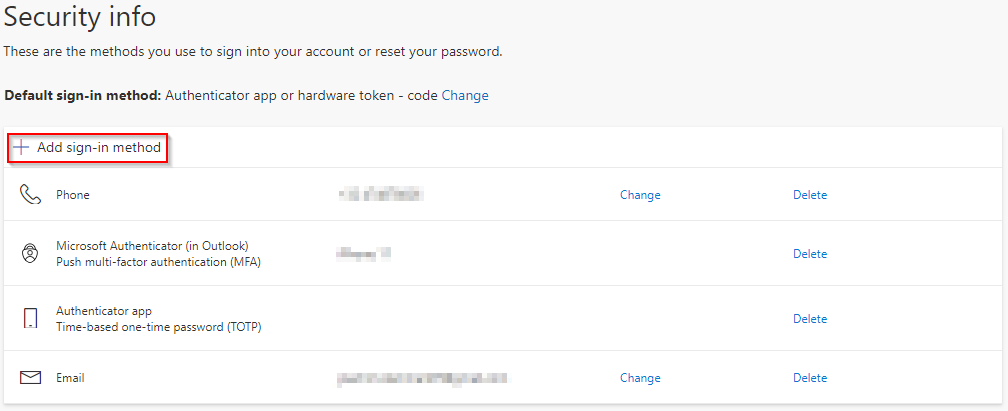
Click "Add sign-in method"
Text
Extra info
6
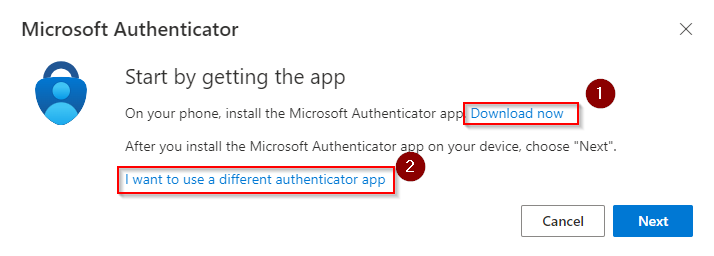
Click "Download now" (1) or "I want to use a different authenticator app" (2) (I.e. Google Authenticator, Raivo Authenticator)
Text
Extra info
7
Follow the next steps to set up your account
Extra info
8
Set default sign-in method: Authenticator app or hardware token - code
Text
Go to the following link to enter your security settings: https://mysignins.microsoft.com/security-info
Extra info
9
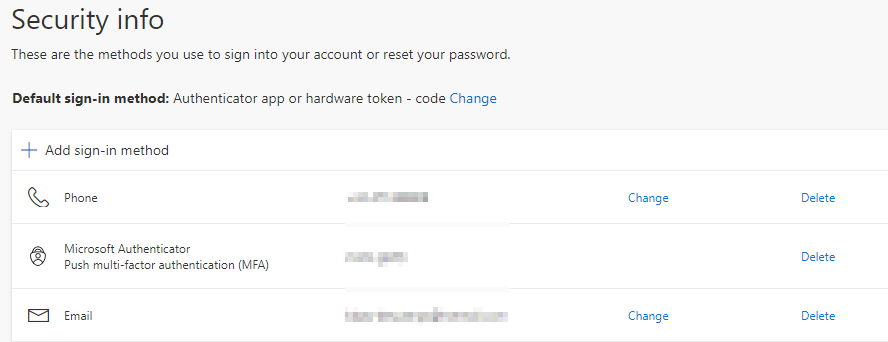
Final result
Text
Extra info
10
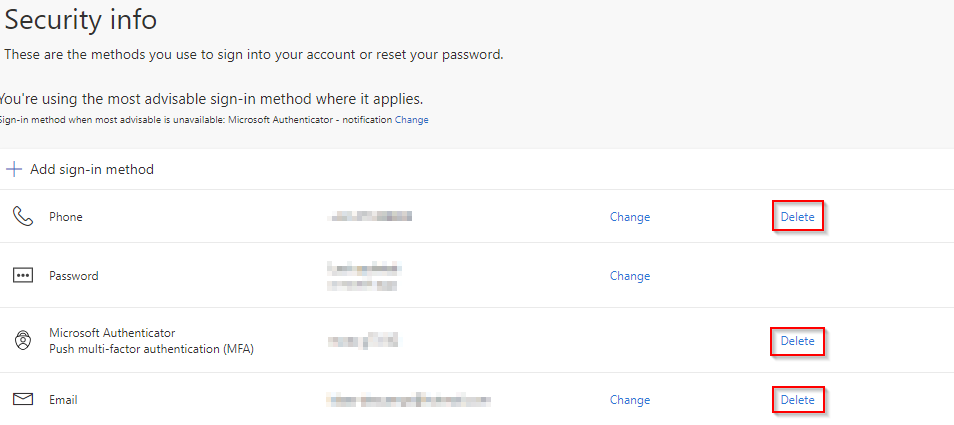
Delete unused MFA option
Text
If there are MFA options that are unused or outdated, remove them at this view by clicking on the delete button.